Gecko Iphone Toolkit Ios 7 Free Download
That horrible feeling when getting locked out of your iPhone because you can’t remember the passcode.
For some people, it’s even worse when they’ve enabled the Erase Data feature. This function will immediately remove everything from the device after 10 failed passcode attempts.
Gecko Iphone Toolkit Ios 7 Free Download 64 Bit Download
Reset your iPhone Passcode if you forget, Gecko iPhone Toolkit is used to recover your iPhone passcode without restore. IPSW Download. Step 7) Now tap on “Launch” option which is just below the Boot option. Now, wait for some just some time Gecko iPhone Toolkit read all you data and recover. IPhone 4 iOS 7.x.x PassCode READ. WINDOWS ONLY. Launch 'GeckoiPhoneToolkit.exe: From Folder, Chose iPhone 4 (GSM) and press BOOT, than OK, than choose iphone.
By default, there aren’t much you can do.
- Try your best to remember the passcode
- Restore the device from iTunes
…Or you can use a software a called Gecko iPhone Toolkit. This is a great tool for those of you who need to reset their iOS passcode without the need to restore it with iTunes.
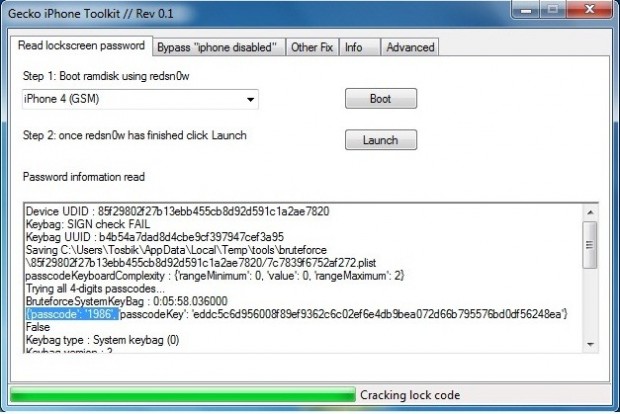
But don’t get too excited yet. First, see if your device is even compatible with the utility.
Support the following devices:
iPhone 3Gs, iPhone 4, iPad 1, iPod Touch 3G, iPod touch 4G. Compatible with iOS 4.0 to 6.x.x.
How to recover your iPhone passcode
Step 1: Download Gecko iPhone Toolkit for free here (Re-uploaded to Dropbox server)
Step 2: Once you finish downloading it, open it up and connect your device to the computer.
Step 3: Choose your device, in this case, I’m going to use my iPhone 4 as an example. Click the “Boot” button. A new window will popup telling you to choose a firmware. Those process will involve redsn0w, when it’s done, just click the “Launch” button.
Wait a few minutes for Gecko to read your passcode. Then it will show it to you in the box right under it.
Bypass “iPhone is Disabled” screen
Besides helping you get your passcode back, this tool also allows you to avoid the “iPhone disable”.
- Move to the second tab and select your device.
- Click on the “Bypass” button and put your iPhone into DFU mode.
- Just wait for it to do the rest.
My iOS device is not compatible 🙁
I’m sorry to hear that your iPhone or iPad isn’t compatible to run the Gecko Toolkit.
But don’t worry, there’s a way to prevent disabling your device and how to reset it using the iTunes method.
How to Remove the “iPhone is Disabled” Screen
No Passcode LockOut is a free jailbreak tweak that allows you to type in as many wrong passcodes as you can without getting the iPhone is disabled message. As a result, no restore from iTunes is required.
- Go to Cydia
- Switch over to the Search page
- Type in No Passcode LockOut
- Install and Respring
After activating this tweak, it will prevent the “iPhone is disabled” message and screen from showing up. Ultimately, if you can’t retrieve your passcode back then there is nothing we can do about it. Either you restore your device from a backup or lose all the data.
This Cydia tweak is only useful when you have friends or relatives who like to mess around with your iPhone and thinking they can disable it.
Restore from iTunes
If your device is already being disabled and, you can’t find a way to get out of it. Go ahead and launch iTunes on your computer.
What we’re going to do is erase the device. According to Apple, if you’ve synced your device with iTunes, you can restore it. To learn more about the process, click here.
That’s it, guys. Just keep in mind that Gecko iPhone Toolkit doesn’t work with iOS 7 devices. Let us know if you have any further questions.
jsut ssh to your iphone via https://sites.google.com/site/msftgu..._rd_rev04b.jar
it only works with older yava version 6,5 i think.. so you need to delete your java 7,x and install older one, you can find it OldVersion.com i think.
once you done, you can turn on WinsCP Download WinSCP and login in to iphone.
just enter localhost as host, port number will be 2022
username will be root
password alpine
than press black square (terminal simbol) and write mount.sh and press enter, wait a few moments and close this little window,.
Go to File location:
mnt1/System/Library/Preferences/com.apple.springboard.plist just edit this file with plist editor Download plist Editor
just change plist file entry about 'Failed Attempts' from what you have (it will be about 8 or 10 if its Disabled...) so just change it to something bellow 5, make it 1 or even zero. and save. than restart iphone, you will be at recovery mode, kick out from recovery mode with tinyumbrella and you will boot normally.